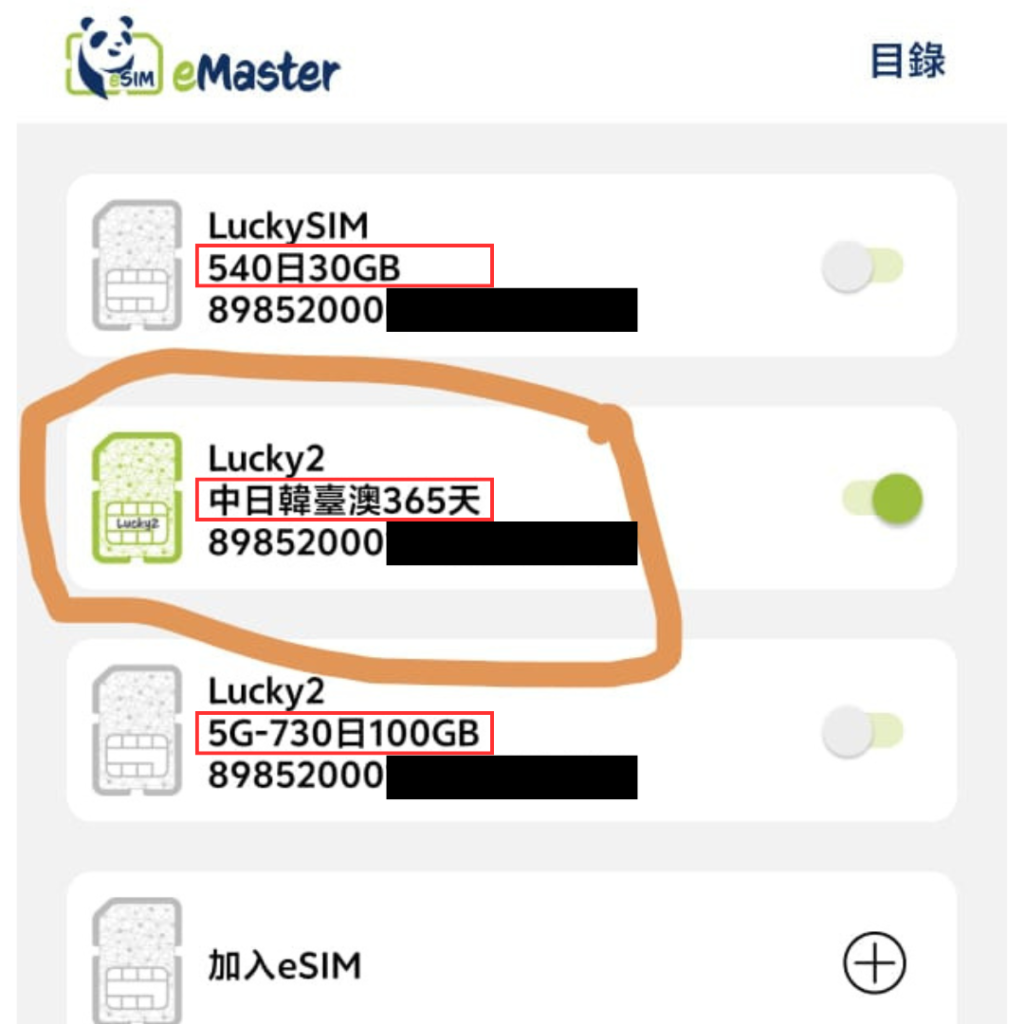

Lucky SIM "eMaster SIM" product features and activation steps

eMaster SIM purchase link: https://1worldsim.com/products/lucky-sim-emaster-sim
Product Features
Previously, a phone could only accommodate up to 2 SIM cards simultaneously, meaning you could only swap out one at a time. Lucky SIM breaks this limitation. In 2024, it successfully developed the exclusive new technology in Hong Kong—the "eMaster SIM" card. Once inserted, this card supports switching between up to 10 eSIMs at any time, while also solving the problem of some phones not supporting eSIMs.
-
10-in-1 Enhancement of Phone Functionality
- Up to 10 eSIMs can be written to the card, with only 1 eSIM active at a time. You can switch between other eSIMs at any time via the app.
-
Supports Specific eSIMs
- Supports LuckySIM's local/roaming data SIMs with Hong Kong numbers, number portability prepaid cards/monthly cards, Lucky2 internet data cards, and travel cards.
- Supports most third-party telecom operators' eSIMs.
(Updated October 2025: Developed according to GSMA eSIM standards. Regardless of your carrier, as long as the eSIM brand complies with relevant standards, it should theoretically be possible to add it to eMaster SIM for unified management, truly enabling one physical card to control multiple eSIMs! However, not all brands' eSIMs are guaranteed to be supported by eMasterSIM.)
- Whether you are in Hong Kong or traveling abroad, you no longer need to worry about changing cards, providing a more flexible solution.
-
How to Use with Android and iPhone
While the eMaster SIM card can be used on both Android and iPhone, the "Lucky eMaster" app for managing eSIMs currently only supports Android phones. If your phone has two card slots, remember to insert the eMaster SIM into the first slot (SIM1 / Slot 1).
- Android phones: Insert into the first slot (SIM1 / Slot 1). Manage up to 10 eSIMs via the "Lucky eMaster" app, with one number set as active by default.
- iPhone phones: As there is no iPhone version of the app yet, first insert the eMaster SIM card into slot 1 (SIM 1) of an Android phone, then set one number as active in the Android app, before inserting it into slot 1 (SIM 1) of your iPhone for use.
-
Solves Two Major Pain Points of Traditional eSIM Products
- Most China-Hong Kong phones do not support eSIM.
- Traditional major carriers' eSIMs are expensive.
FAQ
Q: What is an "eMaster SIM" card?
A: "eMaster SIM" is an innovative SIM card launched by LuckySIM, with more powerful functions than traditional SIM cards. It has built-in functions to handle "LuckySIM," "Lucky2," and some telecom operators' eSIMs. By inserting it into an Android phone or device and using this application, you can enhance your phone's functionality: it supports up to 10 eSIMs.
________________________
Q: What devices is the "eMaster SIM" card suitable for?
A: Simply put, the "eMaster SIM" card is designed to solve the problem of some Android phones not supporting eSIM.
________________________
Q: For which devices might the "eMaster SIM" card not be necessary?
A: If your Android phone or iPhone already supports eSIM (most overseas models in recent years support eSIM), you can directly purchase an eSIM product. You will then receive a QR Code via email to activate it in your phone settings, so using an "eMaster SIM" card is not necessary.
________________________
Q: What is an eSIM?
A: An eSIM is a virtual SIM card technology embedded in a device. Unlike traditional physical SIM cards, it does not require actual insertion or removal from a card slot. An eSIM can be configured and activated via software, allowing users to easily switch mobile network operators or data plans.
________________________
Q: How do I know if my phone supports eSIM?
A: We cannot list all mobile devices that support eSIM. If you have any doubts, please consult the device brand. The following two methods are for reference only.
- [Method 1] Check if there is an option to add eSIM in your phone: "Settings" > "Mobile Service" > Confirm if there is a path for "Add eSIM."
- [Method 2] Dial "*#06#" and see if an EID is displayed on the screen. If EID is displayed, it means your phone can use eSIM.
________________________
Q: How do I install a newly purchased eSIM?
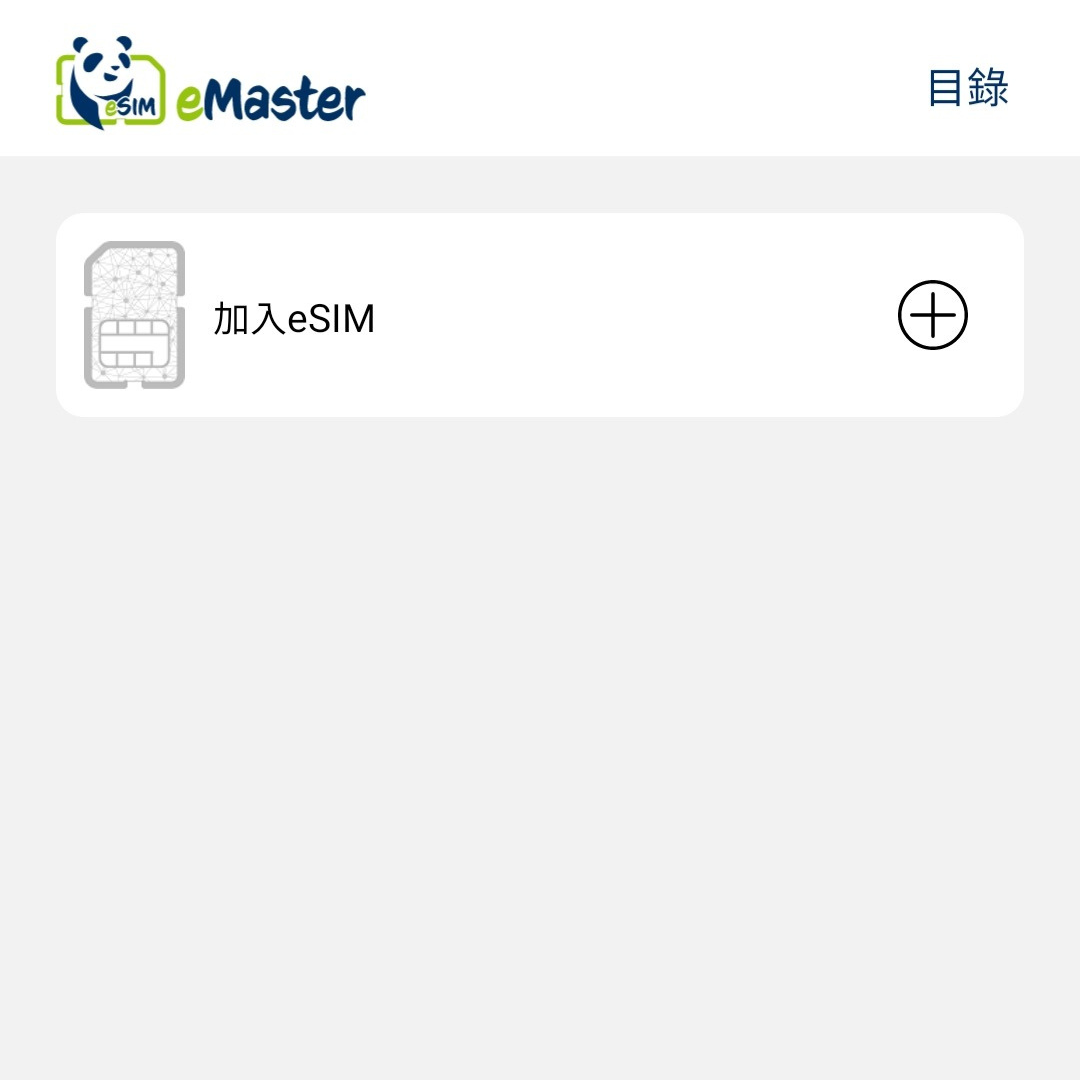
A: You can tap "Add eSIM" on the home screen to install your newly purchased eSIM using one of the following two methods:
- Scan a QR code
- Enter an activation code manually.
________________________
Q: How many eSIMs can I install on "eMaster SIM"?
A: You can install up to 10 eSIMs on "eMaster SIM."
________________________
Q: How to buy an eSIM?
A: 1Worldsim.com exclusively sells Lucky SIM's latest eSIMs! This includes LuckySIM's Hong Kong/roaming data with a Hong Kong number, and Lucky2's internet data cards/travel cards.
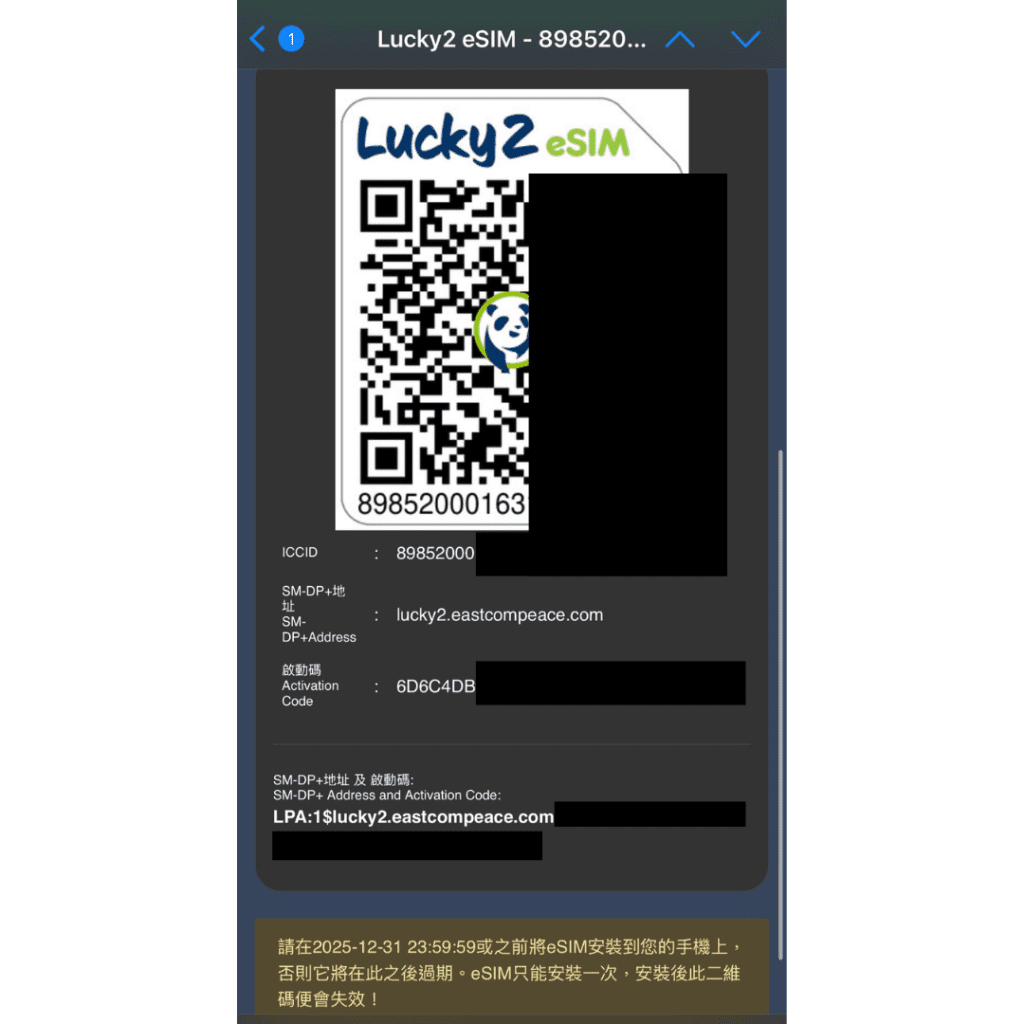
You must ensure your phone/mobile device supports eSIM. You will receive an eSIM QR Code / activation code via email for installation and activation. Your email and SMS contact number must be correct, as the system cannot change or resend them.
Over 50 product prices and details, with the latest offers continuously updated. You can also order through us via the following links:
- [1] Order form: https://forms.gle/gcNW5kc4zqMbw9q8A
PayMe / Bank Transfer / FPS / Alipay
- [2] New online store: https://1worldsim.com/
Credit card (price includes handling fees)
________________________
Q: How do I check my current data usage?
A: Activate your eSIM, then use the following common feature codes (USSD Codes) to inquire:
- Local data usage, dial "*116*1#"
- Roaming data usage, dial "*116*2#"
- eSIM expiration date, dial "*116#"
________________________
Q: What are the functions of the "Lucky eMaster" Android App?
A: The Lucky eMaster application is the exclusive app for eMaster SIM, used to manage your LuckySIM, Lucky2, and some market telecom operators' eSIMs on your phone. You can install up to 10 eSIMs into the eMaster SIM through this app. By scanning a QR code, an eSIM can be downloaded to your device immediately, and you can switch between installed eSIMs with a single click. Please note that once an eSIM is deleted from the device, you cannot restore it.
Google Play download link: https://play.google.com/store/apps/details?id=com.luckysim.luckyemaster
________________________
Q: Which telecom operators' eSIMs can the "eMaster SIM" card write?
A: The "eMaster SIM" supports all types of eSIMs under LuckySIM's brands, "LuckySIM" and "Lucky2." Although it also technically supports eSIMs from other telecom operators, successful writing cannot be fully guaranteed, especially for numbers requiring real-name registration.
The "eMaster SIM" is developed according to GSMA eSIM standards. Regardless of which carrier you use, as long as the eSIM brand complies with the relevant standards, it should theoretically be possible to add it to eMaster SIM for unified management, truly realizing the ability to control multiple eSIMs with one physical card! However, it is not guaranteed that all brands of eSIMs will be supported by eMasterSIM.________________________
Activation Steps
To use the eMaster SIM, please ensure your phone supports the Android system.
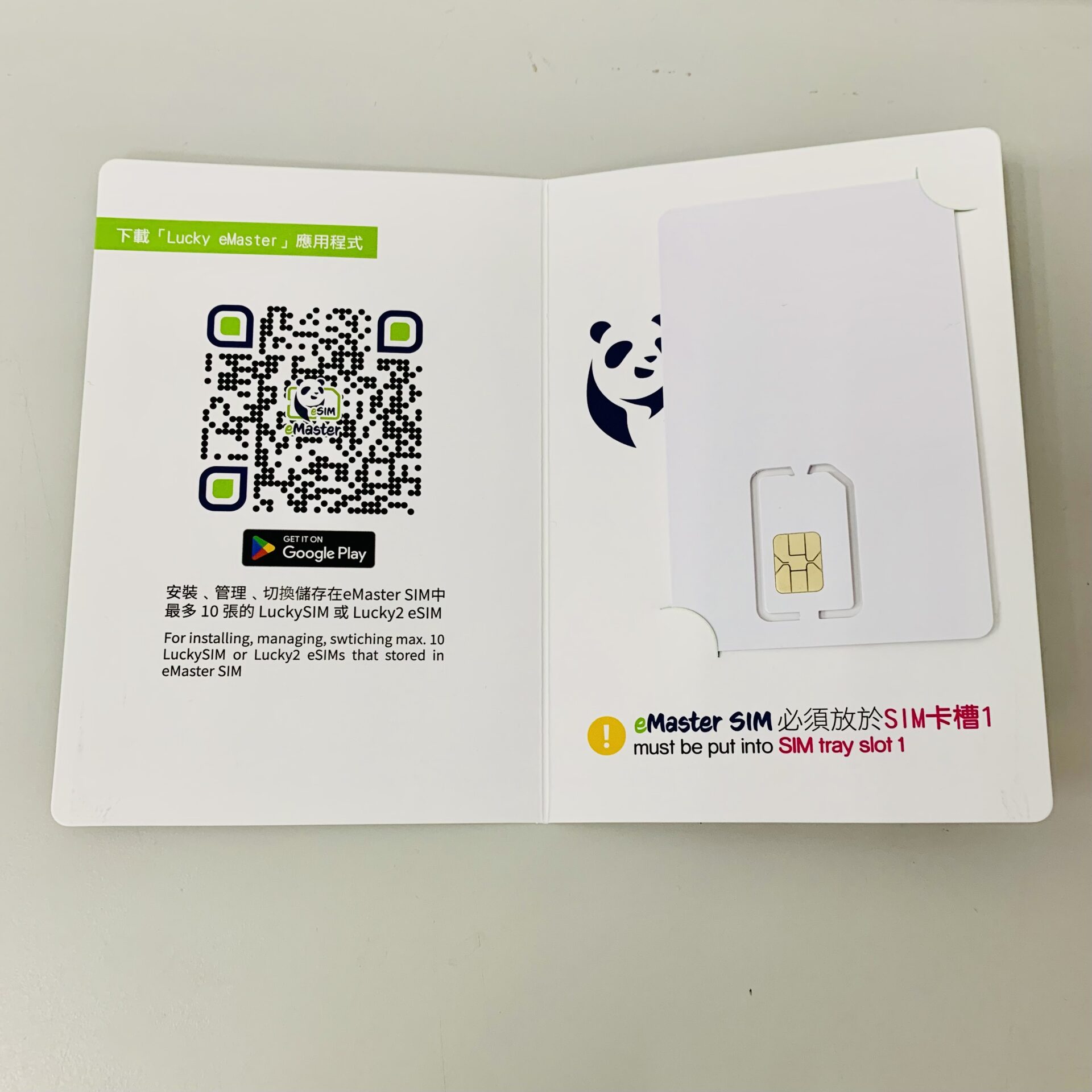
【Step 1】Open the package and take out the eMaster SIM.
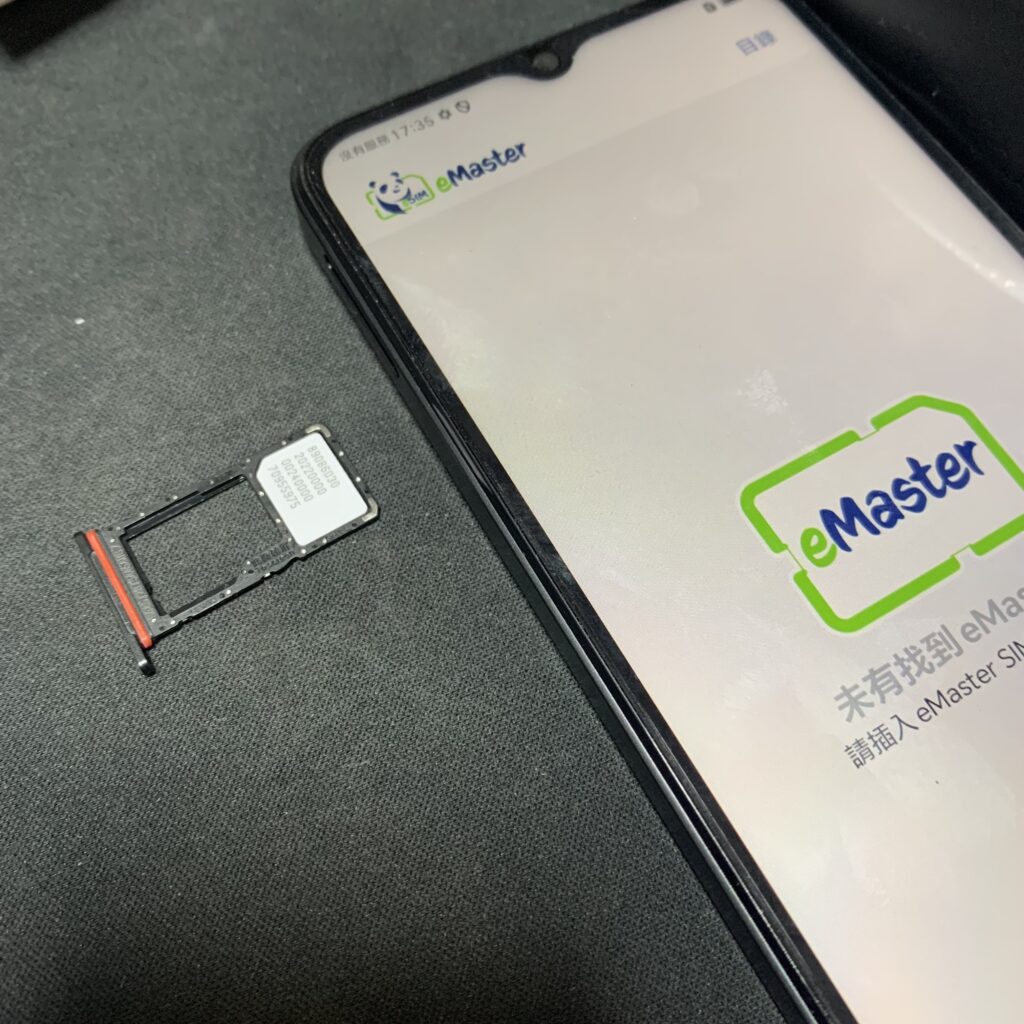
【Step 2】Insert the eMaster SIM into your phone's SIM tray.
- If your phone has two card slots, remember to insert the eMaster SIM into the first slot (SIM1 / Slot 1).
- If you already have a SIM card in the first slot, please move it to the second slot (SIM2 / Slot 2) to continue using it.
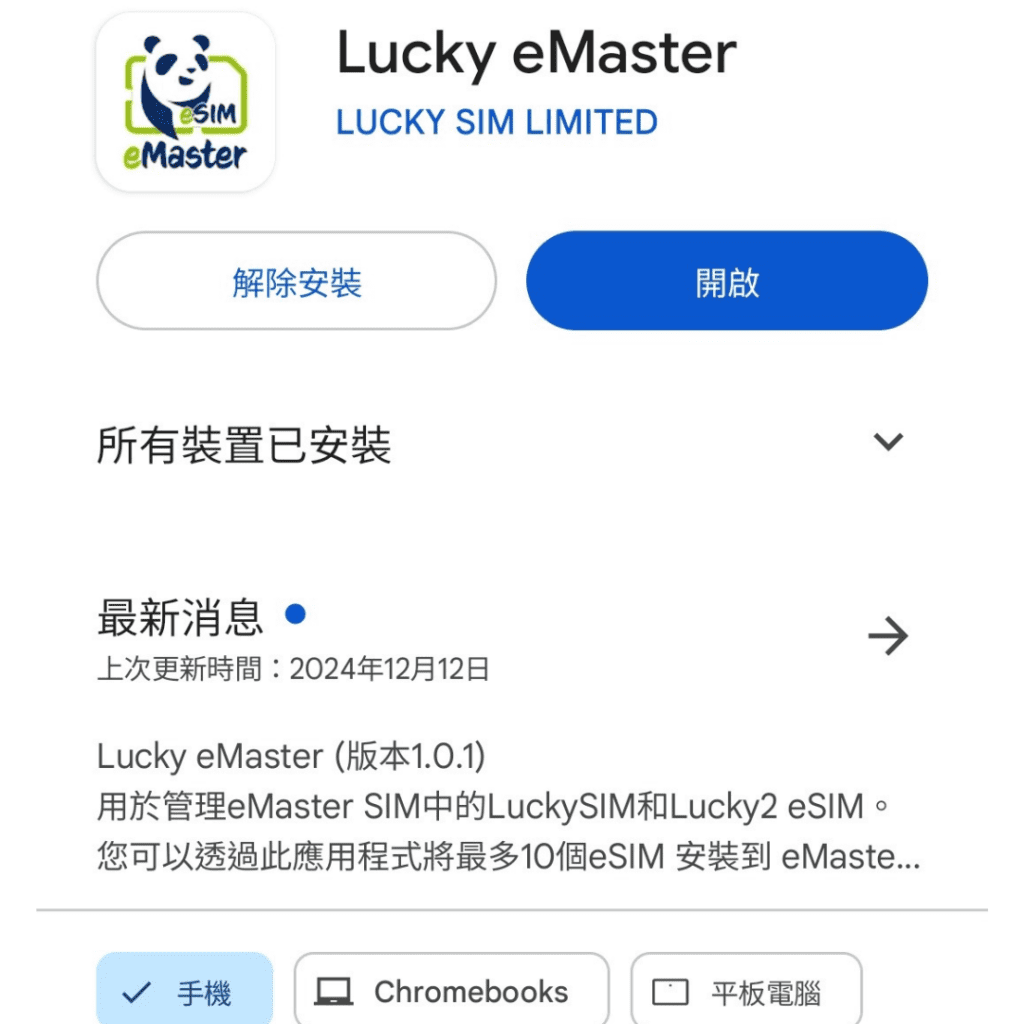
【Step 3】Please download and install the Lucky eMaster application from Google Play: https://play.google.com/store/apps/details?id=com.luckysim.luckyemaster
【Step 4】After successfully installing Lucky eMaster, please open the application.
【Step 5】In the email, you will find the QR code for the purchased eSIM.
(eSIM products can be ordered through the designated agent https://1worldsim.com/collections/lucky-sim, or inquire via WhatsApp: 97621529)
【Step 6】Return to the eMaster App homepage, tap "Add eSIM," and choose one of the following methods to activate and install the eSIM into the eMaster SIM:
- a) "Scan QR code" or
- b) "Enter activation code"
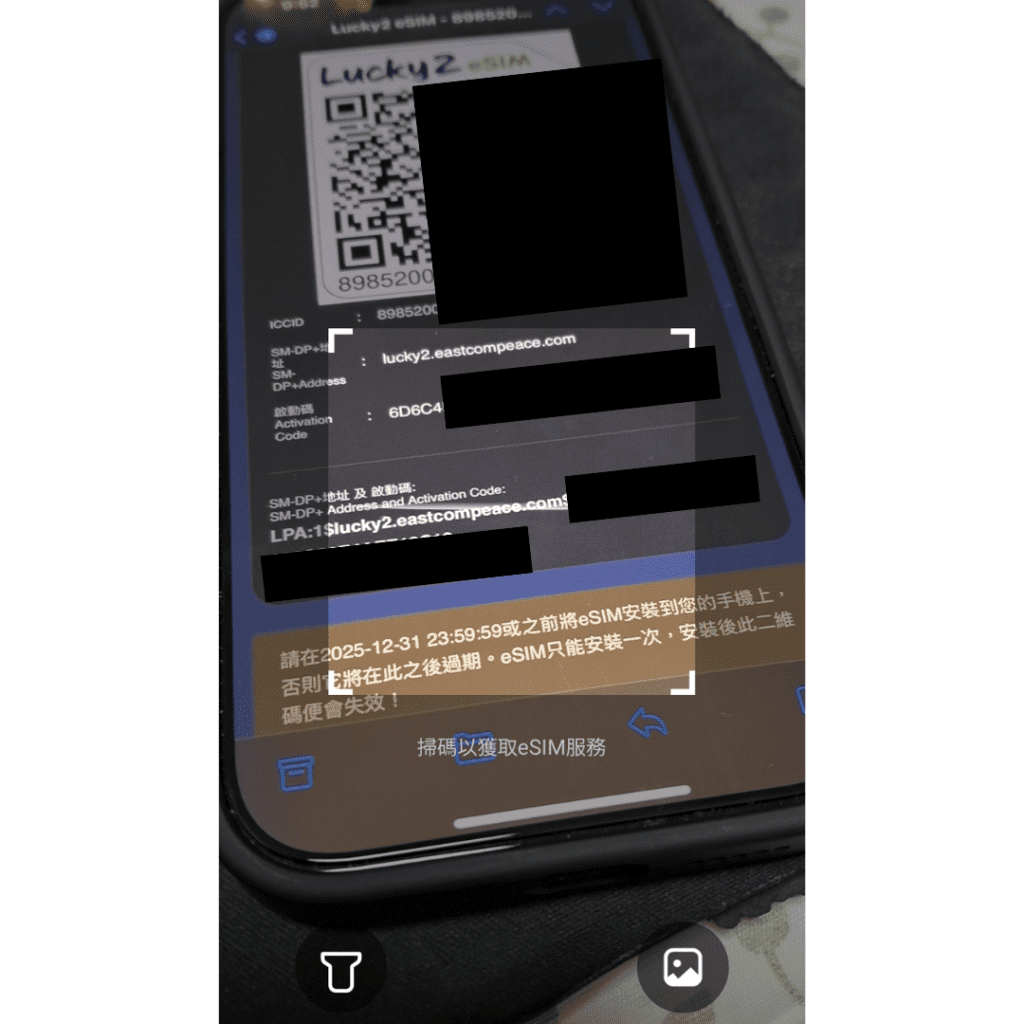
【Step 7】A "Successfully added" message will appear, indicating that the eSIM has been successfully installed in the eMaster SIM.

【Step 8】Customers can then turn on and switch eSIMs from the homepage, activating one eSIM out of a maximum of 10 eSIMs.

【Step 9】After adding various eSIMs, you can rename each for easier identification.